
If you just got your Unity Wireless SIM card in the mail, you probably have one simple goal: get your phone working today. This guide walks you through the whole activation, step by step. It also shows you a few things worth checking so you stay safe and never lose your service.
Let’s get you connected.
What You Need Before You Start
Activation goes faster when you have these ready:
- Your Unity Wireless SIM card (the small card that came in your welcome packet).
- An unlocked phone. Unity Wireless runs on T-Mobile’s 4G LTE and 5G network, and it works with most unlocked GSM phones. If your phone is locked to another carrier, activation may fail until you unlock it.
- Your approval confirmation. You should have been approved for Lifeline service before your SIM shipped. Keep the email, text, or order number they sent you.
- A Wi-Fi connection (helpful for the first setup and for downloading updates).
- Your account details — the name, phone number, or email you used when you applied.
Have all five? Good. Let’s activate.
How to Activate Your Unity Wireless SIM Card
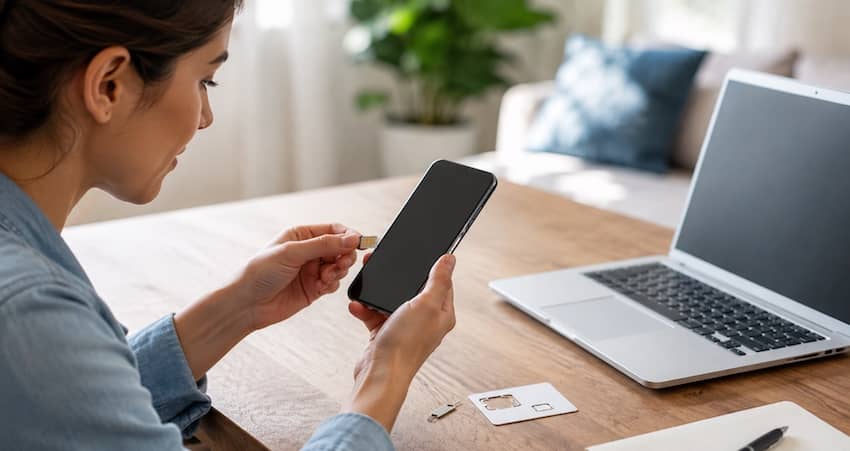
Step 1 — Put the SIM card in your phone.
Power off your phone first. Find the SIM tray (usually on the side, opened with the little pin that came with your phone). Gently place the Unity Wireless SIM in the tray, close it, and turn your phone back on. Handle the gold chip carefully and don’t force the tray.
Step 2 — Start the activation.
Once your SIM is in, you activate your line through Unity Wireless. There are a few ways to do it:
- Online: Log in to your account at account.unitywireless.com and follow the activation prompts.
- By phone: Call Unity Wireless Customer Care at (954) 613-6051 (hours are usually Monday–Saturday, 9 AM–8 PM EST) and ask them to activate your SIM.
- By email or the help desk: You can also reach support at support@unitywireless.com or through their online contact page.
Use whichever way is easiest for you. Have your order number or account info handy so they can find you quickly.
Step 3 — Wait for the network to connect.
After you start activation, your phone needs a little time to link up with the T-Mobile network. You may see “No Service” or “Searching” for a few minutes. That’s normal. Leave the phone on and give it time.
Step 4 — Restart your phone.
If it’s been 15–30 minutes and you still have no signal, turn your phone completely off and back on. A restart often finishes the activation and pushes the new settings through.Step 5 — Test your service.
Send a text to a friend, make a short call, and open a web page or app without Wi-Fi. If calls, texts, and mobile data all work, you’re done. Congratulations – your Unity Wireless SIM is active.
If Your Data Doesn’t Work: Set Your APN
Sometimes calls and texts work, but the internet won’t load. This usually means your phone needs the right APN settings (the settings that tell your phone how to reach the data network).
Unity Wireless lists the correct APN values on their website at unitywireless.com/pages/apn-settings. To fix it:
- Open Settings on your phone.
- On Android, go to Network & Internet → SIMs → Access Point Names. On iPhone, go to Settings → Cellular → Cellular Data Network (this option only shows on some phones).
- Add a new APN using the exact values from the Unity Wireless APN page.
- Save it, select it, and restart your phone.
After the restart, test your data again. This one small change fixes most “calls work but internet won’t” problems.
Common Activation Problems (and Simple Fixes)
“My SIM won’t activate at all.” Double-check that your Lifeline application was fully approved. If your enrollment isn’t complete, the SIM can’t turn on. Call Unity Wireless support and ask them to confirm your approval status.
“My phone says the SIM is not supported.” Your phone may be locked to another carrier, or it may not work on the T-Mobile network. Ask your old carrier to unlock it, or try the SIM in a different unlocked GSM phone.
“I want to keep my old number.” You can usually keep your number (this is called porting). Tell Unity Wireless during activation and have your old account number and PIN ready. Do not cancel your old service until the number moves over, or you could lose it.
“It’s been a full day and nothing works.” Contact Unity Wireless directly through the phone number or help desk above. If they can’t resolve it, that’s a sign it may be time to look at other options (more on that below).
Frequently Asked Questions
Most activations finish within a few minutes to an hour. If you’re keeping your old number, it can take longer – sometimes up to 24 hours – while the number transfers.
No. Any unlocked GSM phone that works on the T-Mobile network should work. You can bring your own phone and keep your own number.
This is common right after activation. Leave your phone on for 15–30 minutes, then restart it. If it still shows no service, call Unity Wireless support to confirm your line is active.
You likely need to set your APN. Follow the APN steps above using the values from the Unity Wireless APN settings page, then restart your phone.
Yes, in most cases. Ask to port your number during activation and keep your old account details ready. Don’t cancel your old service until the number has fully moved.
Final Thoughts
Activating a Unity Wireless SIM is usually quick: insert the SIM, start activation online or by phone, wait for the network, restart, and test. If your data doesn’t work, the APN fix takes care of it.
Just remember the bigger picture. Your phone service is too important to leave to chance. Take a couple of minutes to confirm your Lifeline benefit is real and in your name, and you’ll have peace of mind along with a working phone.
This guide is for general information. Provider details and program rules can change, so always confirm the latest steps and status with Unity Wireless and the official Lifeline program before you rely on them.