
Your package arrived. Maybe there is a phone inside. Maybe it is just a small SIM card in a paper sleeve. Either way, you want the same thing – to switch it on and have it work.
So let me start with the part most guides bury, because it saves a lot of people a lot of time.
If Cintex sent you the phone, there is probably nothing for you to activate. Cintex ships its phones with the SIM card already inside and the line already switched on. You charge it, turn it on, and use it.
The people who get stuck are usually the ones following SIM activation steps that were never meant for them. They type numbers into a form built for a different kind of customer, nothing happens, and they decide the phone is broken.
So the first job on this page is not a list of steps. It is working out which kind of Cintex customer you are. Once you know that, activation takes minutes.
First, a quick word about AirTalk Wireless
Cintex Wireless is merging into AirTalk Wireless. The two brands are run by the same parent company, HTH Communications, based in Houston, Texas.
You may have already run into this. Click the apply button on the Cintex website and you can be sent over to AirTalk to finish. A lot of people see that and think they landed on a fake site. They did not. That redirect is the merger doing its job.
Here is why it matters today. Your account may sit on the Cintex system, or it may sit on AirTalk’s. Each one has its own login and its own activation page. Following the wrong set of instructions is one of the most common reasons activation appears to fail.
How to tell which one is yours: open the confirmation email you got after you applied. Look at who sent it and where the links point. That tells you which company is holding your service.
| What happened when you applied | Where you activate |
|---|---|
| You stayed on cintexwireless.com the whole way through | Cintex — everything below applies to you |
| You were moved over to airtalkwireless.com to finish | AirTalk — use their site, app, and support line |
| You are an older Cintex customer who got a migration email or text | AirTalk, once your move is complete |
If your paperwork points to AirTalk, our AirTalk Wireless review covers their setup, and checking your AirTalk application status is the right page if your device has not shipped yet. If you are still waiting on Cintex to approve you or ship anything at all, start with how to check your Cintex Wireless application status instead. There is nothing to activate until something arrives.
Which of these four is you?
Find your row. Then skip straight to that section. You do not need to read the other three.
| What arrived | What you need to do | How long |
|---|---|---|
| A phone from Cintex, in a box with a charger | Almost nothing. Charge it and turn it on. | 5 minutes |
| A SIM card only (you are using your own phone) | Insert the SIM, then activate it online or by phone | 10–15 minutes |
| A phone from Cintex with eSIM | Also nothing. It arrives pre-activated. | 5 minutes |
| An email with a QR code (eSIM on your own phone) | Install the eSIM profile over Wi-Fi | 10–20 minutes |
Path 1 — Cintex sent you a phone
This is the most common situation, and the easiest one. Your line should already be live.
- Charge it first. All the way. Please do not skip this. A phone that shipped with a dead battery behaves exactly like a broken phone. Leave it on the charger for an hour before you judge anything. On many Cintex handsets a red light means it is still charging and green means it is ready.
- Hold the power button until the screen lights up.
- Wait two or three minutes. The phone has to find a tower and register itself. This is not instant.
- Look at the top of the screen. Signal bars with LTE or 5G means you are connected. “No service” or “SOS” means keep reading.
- Call a real person. Not a recording. That is your proof.
If it will not connect, make the activation call. Dial 611 from the Cintex phone and choose option 3. That is the activation option. You should get a text message confirming the phone is on. If it was already active, the system will simply tell you so – no harm done.
Calls to *611 do not use your minutes. Cintex’s own terms confirm that, along with 911 and 988. So this call costs you nothing even if your balance is empty.
If 611 will not connect at all, some phones cannot dial out before the line is live. In that case call 1-855-655-3097 from a different phone.
A man in Louisiana emailed us last year, three days into fighting with a “broken” Cintex phone. He had been hunting for an activation code he never had. The phone had been switched on the whole time – it just needed a full charge and a restart. He felt silly. He should not have. Nothing in the box told him that.
Path 2 — Cintex sent a SIM card only
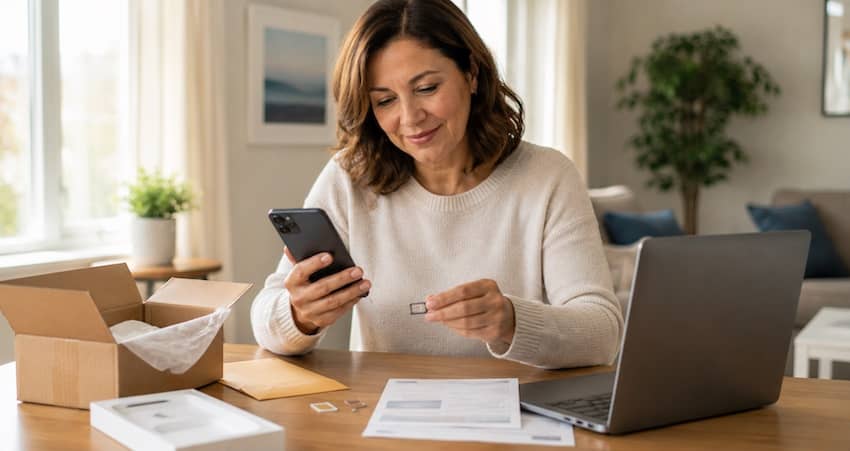
If you signed up with your own phone, Cintex mails you a SIM kit instead of a device. This is the one path where you genuinely do have to activate something.
Before you start, find two numbers. Having them ready turns this into a five minute job:
- Your MDN. That is simply your new Cintex phone number. MDN stands for Mobile Directory Number, which is a complicated way of saying “your number.” It is on your approval email or the paperwork in the box.
- Your SIM card number. This is the long number printed on the plastic card the SIM pops out of. It may be labeled ICCID. It is usually 19 or 20 digits. Write it down before you snap the SIM out, because reading it off the tiny chip afterward is genuinely hard.
Now activate:
- Power your phone off completely. Not sleep. Off. Putting a SIM into a running phone is how you end up with a card the phone refuses to see.
- Open the SIM tray with the little pin tool from the kit, and slide the SIM in with the gold contacts facing down. It only fits one way. Do not force it.
- Turn the phone on and give it a couple of minutes.
- Go to cintexwireless.com, open the My Service menu, and choose Activate My SIM Card. The direct page is cintexwireless.com/active-my-sim-card.
- Enter your MDN and your SIM card number, then submit.
- Wait a few minutes, then restart the phone. The restart matters more than people expect.
- Make a test call.
Prefer to do it by voice? Call 1-855-655-3097 with both numbers in front of you.
Your phone has to be unlocked and compatible first. If you have not checked, dial *#06# on your phone to see its IMEI number, then run that number through Cintex’s compatibility checker before you do anything else. A phone still locked to another carrier will not accept a Cintex SIM, no matter how many times you activate. Our bring your own phone guide walks through checking this properly.
Path 3 — eSIM on a phone Cintex sent you
Cintex states that when you order one of their devices with eSIM, it arrives pre-activated. So this is the same as Path 1: charge it fully, power it on, wait a few minutes, and make a test call.
Have Wi-Fi nearby when you first switch it on. The setup screens go faster with it, and you may want it for updates.
Path 4 — eSIM on your own phone
This path has more steps, and one requirement people miss until they are stuck.
You need Wi-Fi. An eSIM profile is downloaded over the internet, and you do not have mobile service yet. No Wi-Fi means no activation. A library, a relative’s house, or a free hotspot all work.
- Connect to Wi-Fi.
- Open your activation email from Cintex. It contains a QR code or a set of activation details.
- On iPhone: Settings → Cellular → Add eSIM or Add Cellular Plan, then scan the code.
On Android: Settings → Network & internet → SIMs, tap the plus sign or “Download a SIM instead,” then scan. - Let it download. A minute or two is normal. Do not close the screen.
- Choose the new line for calls and mobile data if your phone asks.
- Restart the phone, then test it.
Two things to be careful about.
Activation QR codes are usually single use. If activation stalls, do not delete the eSIM profile and try to start over – you may need Cintex to issue a brand new code, which means waiting again.
Your phone must be carrier unlocked. A locked phone will refuse the profile outright, and the error message rarely says why.
Three tests that prove it actually worked
Do all three. Plenty of people do the first one, feel relieved, and discover days later that half their service was never switched on.
- Call a real person. A friend, a relative, anyone who will pick up. Not 611 and not a recording.
- Send a text and have them text you back. That proves both directions work.
- Turn Wi-Fi completely off, then open a web page. This is the real data test. With Wi-Fi on, a dead mobile data connection looks perfectly healthy.
You should also receive a welcome text from Cintex. Leave their account alerts switched on. Those are the messages that warn you when your renewal is coming or when your line is at risk.
Keeping your old phone number
You can bring your existing number to Cintex, and it does not cost anything. But the order of operations matters, and this is where numbers get lost.
Activate your Cintex service first, then request the transfer. Carriers generally cannot pull a number onto a line that does not exist yet.
Do not cancel your old service. Once that old line is shut off, the number is released and nobody can get it back. Let the transfer close the old account for you.
Have these ready before you call: your old account number, your old account PIN or passcode, and the name and address exactly as they appear on the old account. One mismatched detail is the usual reason a transfer stalls.
Transfers often finish within a day, but a few days is normal. Our full guide on how to keep your phone number when switching Lifeline providers covers what to do when one gets stuck.
Calls work, but the internet does not
This is the most common complaint after activation, and it feels like the phone is broken. Usually it is the APN – the setting that tells your phone how to reach mobile data. Calls and texts can work perfectly while the APN is wrong. That is exactly why it is so confusing.
Work through these in order. Stop as soon as data comes back.
- Do nothing and wait. Most modern phones pull the right settings by themselves within a few minutes of the SIM going in.
- Check that mobile data is switched on. It sounds too simple. It is the answer more often than you would think.
- Turn airplane mode on for 30 seconds, then off.
- Restart the phone completely.
- Use “reset network settings.” This wipes any wrong values and lets the phone configure itself again. You will need to re-enter your Wi-Fi passwords afterward, so have those handy.
Only after all of that should you consider typing values in by hand.
Please do not copy APN settings off a random search result. This matters more with Cintex than with most carriers.
So get the values from Cintex directly on 1-855-655-3097, or use our Cintex Wireless APN settings guide, which we check against their support line rather than against other websites. Whatever you do, write down what is already on your screen before you change a single field.
How to actually reach Cintex
| Channel | Details |
|---|---|
| Main support line | 1-855-655-3097 · Monday to Friday 8 a.m. to 8 p.m. Central, Saturday 10 a.m. to 7 p.m. Central |
| Second line | 1-206-567-8959 — listed in their own terms of service and often less busy |
| From your Cintex phone | Dial *611. It is free and does not use your minutes. |
| Live chat | cintexwireless.com/contact |
| info@cintexwireless.com | |
| Help center | cintexwireless.com/help-center |
Four things that genuinely help:
- Call from a different phone than the one you are troubleshooting. An agent will often ask you to restart it, and you cannot do that mid-call.
- Try a weekday mid-morning. Monday mornings and lunchtime are the worst.
- Use email at least once. Chat and phone calls leave you nothing. Email leaves a record with a date on it, and that record is what makes an escalation work later.
- Keep a simple log. Date, time, who you spoke to, what they promised, ticket number. One page in a notebook is enough.
The rule that quietly ends service after activation
This is the part I most want you to remember, because it takes people’s service away long after they thought they were finished.
Federal Lifeline rules say that if you go 30 days in a row without using your service, your provider must warn you that you have 15 more days to use it. Miss that window and you are removed from the program. Then you have to apply all over again from the beginning.
It sounds harsh. In practice it is easy to satisfy, as long as you know it exists. Under the FCC’s own rules, any one of these counts as using your service:
- Making a call or using mobile data
- Sending a text message
- Answering an incoming call from someone other than your carrier
- Buying extra minutes or data to add to your plan
- Answering when your carrier contacts you, and confirming you want to keep the service
Look closely at that list. An automated call from Cintex that you ignore does not count. One text message to your sister does.
The clock starts the moment your line goes live. So send a text today, before you close this page. Then set a reminder on the first of every month. That single habit protects the benefit better than anything else on this page.
We hear from people every year who kept a Lifeline phone strictly for emergencies, never used it, and lost it for exactly that reason. The warning text arrived and looked like spam, so they deleted it. Two texts a month would have kept the line alive.
Keeping your benefit also means answering your yearly renewal notice, which is a separate requirement. Our guide to Lifeline annual recertification explains what triggers it and what happens if you miss the deadline.
Common Cintex activation problems, and what to do
| What you are seeing | What it usually means | What to do |
|---|---|---|
| Phone will not turn on at all | Shipped with a flat battery | Charge for a full hour before deciding anything. Try a different cable and wall plug. |
| “No SIM” or “SIM not provisioned” | The SIM is loose, missing, or the line is not switched on | Power off, open the tray, reseat the SIM, restart. If the tray is empty, see the missing SIM section above. |
| “Emergency calls only” or SOS at the top | The phone reaches a tower but your account is not live on it | Dial 611 and choose option 3, or call 1-855-655-3097 from another phone. |
| Calls and texts work, no internet | APN settings or the mobile data switch | Follow the APN steps above, in order. Get values from support, not from a search result. |
| Picture messages will not send | The MMS part of the settings is missing | Ask for the MMS settings while you already have support on the line. |
| The SIM does not fit the tray | The wrong size was punched out of the card | Do not trim it or force it. Call and ask for a replacement SIM. |
| eSIM will not download | No Wi-Fi, a locked phone, or a code already used | Connect to Wi-Fi first. Confirm the phone is unlocked. Ask for a fresh code rather than deleting the profile. |
| Your own phone rejects the Cintex SIM | The phone is locked to another carrier, or is not compatible | Dial *#06# for the IMEI and check compatibility. See our BYOP guide. |
| Everything worked, then stopped weeks later | Usually the 30 day non-usage rule, or a missed renewal | Call support and ask if you were de-enrolled. If you were, you can reapply. |
| Nothing has arrived at all | You are still at the approval or shipping stage | See how to check your Cintex application status. |
If you want the general version of these fixes, one that applies to any carrier, our universal guide to activating a free government phone covers the steps every Lifeline provider has in common.
A word about activation scams
I do not enjoy putting this in a helpful guide. But people get caught, and you deserve to see it coming.
Real Lifeline activation never costs a cent. No fee, no card number, no bank details, no gift card, no deposit. Cintex does not charge you to switch on service you already qualified for. Anyone asking for money to “release” or “activate” your free phone is stealing from you.
There is a quieter one too. Nobody legitimate needs your full Social Security number to activate a phone that has already been approved. That step happened back at the application stage. If someone asks for it now, stop and call the number on your own paperwork instead.
Only activate at cintexwireless.com, or on the AirTalk site if that is where your account lives. Look-alike domains exist and they are built to collect exactly the details you are about to type in.
You can check any provider against the official government list before you share anything. Our guide on how to verify a Lifeline provider is legitimate shows you how in about a minute, and how to spot a Lifeline scam covers the tricks that are circulating right now.
Frequently asked questions
Usually no. Cintex ships its phones with the SIM already installed and the line already switched on. Charge it fully, power it on, wait a few minutes, and make a test call. If it does not connect, dial 611 and choose option 3.
Dial 611 from your Cintex phone and select option 3 to activate. From any other phone, call 1-855-655-3097. Their terms also list 1-206-567-8959. Support hours are Monday to Friday 8 a.m. to 8 p.m. Central and Saturday 10 a.m. to 7 p.m. Central.
Go to cintexwireless.com, open the My Service menu, and choose Activate My SIM Card. Enter your MDN, which is your new Cintex phone number, along with the SIM card number printed on the plastic card. Submit, wait a few minutes, then restart your phone.
It simply means your mobile phone number. MDN stands for Mobile Directory Number. When an activation form asks for your MDN, it is asking for the Cintex number listed on your approval email or paperwork.
Cintex is merging into AirTalk. Both brands belong to the same parent company, HTH Communications in Houston. The redirect is normal, not a scam. If your account now sits with AirTalk, use their website and app to activate and manage your service.
A phone that ships pre-activated works within minutes of powering on. A SIM card activation usually completes within a few minutes of submitting the form, though it can take up to 24 hours. Restarting the phone after activating often makes the difference.
No. The service, the SIM, and activation are all free for approved Lifeline customers. There are no deposits and no contracts. Anyone asking you to pay to activate a free government phone is not legitimate.
Yes, if it is carrier unlocked and compatible with their network. Dial *#06# to find your IMEI number and check it with Cintex before you apply. If your phone qualifies, they mail you a free SIM kit rather than a device.
Go 30 days in a row without using the service and Cintex must send you a notice giving you 15 more days. If you still do not use it, your Lifeline benefit ends and you have to apply again. Making a call, sending a text, or using data all count as usage.
Not for a physical SIM card. You do need Wi-Fi or another internet connection to install an eSIM profile, because the profile downloads over the internet before you have mobile service.
Verify any provider’s current standing at lifelinesupport.org before sharing personal information. Phone numbers, portals, and plan details change, especially while Cintex is merging into AirTalk Wireless. We check this page regularly, but always confirm against Cintex’s own website or support line before acting on anything time sensitive. This guide is independent information, not official communication from Cintex Wireless, AirTalk Wireless, the FCC, or USAC.