
Most unlocked 4G LTE or 5G phones can work with Cintex Wireless, as long as they pass an IMEI compatibility check. Phones that are still locked to another carrier, or older 3G-only phones, usually won’t work. One big change for 2026: Cintex Wireless is moving into its sister brand, AirTalk Wireless, so new “bring your own phone” (BYOP) sign-ups are often handled through AirTalk instead.
This guide shows you which phones are likely to work, how to check your own phone in about five minutes, and what to do if your phone doesn’t pass.
Quick Answer
- Best fit: an unlocked smartphone that supports 4G LTE and VoLTE (HD Voice calling).
- Won’t work: carrier-locked phones and old 3G-only phones.
- iPhones: iPhone XR and newer can use a free eSIM if the phone is unlocked.
- Check first: find your IMEI by dialing *#06# and run it through the provider’s compatibility check before you apply.
- Heads-up: Cintex is merging into AirTalk Wireless. New applicants may be sent to AirTalk’s website. Your Lifeline benefit itself doesn’t change.
What does “BYOP” mean at Cintex Wireless?
BYOP (Bring Your Own Phone) means you keep the phone you already own and only get a new SIM card or eSIM from Cintex Wireless. Your Lifeline benefit then pays for the monthly service on that phone. You don’t have to wait for a free phone to arrive in the mail.
BYOP is a good choice if:
- You already have a decent smartphone and don’t want a basic free model.
- You want to keep your photos, apps, and contacts on the same device.
- You want to start service faster (an eSIM can be ready right after approval).
BYOP is still part of the regular Lifeline program. You still need to qualify, and the one-benefit-per-household rule still applies. If you’re not sure you qualify yet, start with our Lifeline eligibility guide.
Cintex Wireless is moving to AirTalk – what that means for BYOP
Cintex Wireless and AirTalk Wireless are sister brands owned by the same parent company. AirTalk has been combining both brands under the AirTalk name. According to AirTalk, existing Cintex customers are moved automatically, keep the same phone number and Lifeline benefits, and get notices by text and email before and after the switch.
Here’s what that means for you, depending on where you are:
| Your situation | What happens with your phone |
|---|---|
| You’re a current Cintex customer using your own phone | Keep using it. You don’t need to do anything. After the move, you manage your account through AirTalk’s website and app. |
| You’re applying now and want to bring your phone | Cintex’s application pages may send you to AirTalk’s sign-up. Choose the “Bring Your Own Device” option there. |
| Your transfer to AirTalk was denied | Your service stays with Cintex with the same benefits. You can contact support to try again. |
Because the two brands share an owner, a phone that passes AirTalk’s BYOD check should be fine for a Cintex/AirTalk Lifeline plan. Learn more about the brand in our AirTalk Wireless review and our full Cintex Wireless review.
Lifeline providers change their coverage over time. Before you apply, enter your ZIP code at the official USAC Companies Near Me tool to see whether Cintex or AirTalk serves your area.
Which phones are compatible with Cintex Wireless?
Cintex Wireless does not publish a fixed list of approved models. Instead, the provider checks each phone by its IMEI number (the phone’s unique ID). So your exact phone has to pass the check.
Still, you can get a strong idea before you check. Use this table:
| Type of phone | Why |
|---|---|
| Unlocked iPhone XR or newer | Supports 4G LTE, VoLTE, and eSIM. |
| Unlocked iPhone with a SIM tray (older models) | Needs a physical SIM card instead of eSIM. Must support LTE and VoLTE. |
| Unlocked Android phone with 4G LTE or 5G (Samsung, Motorola, Google Pixel, etc.) | Most recent unlocked Androids pass, but check the IMEI. |
| Phone bought from T-Mobile or a T-Mobile-based brand, now unlocked | Independent guides often link Cintex service to the T-Mobile network. Confirm with the IMEI check. |
| Phone still locked to another carrier (paying it off, prepaid lock period) | The phone won’t accept another provider’s SIM or eSIM until it’s unlocked. |
| Old 3G-only phone | The major US 3G networks have shut down. |
| Basic flip phone without VoLTE | Older flip phones often can’t make calls on today’s LTE networks. |
How to check if your phone works with Cintex Wireless
Checking your phone takes about five minutes. Do these steps before you apply so you don’t get stuck later.
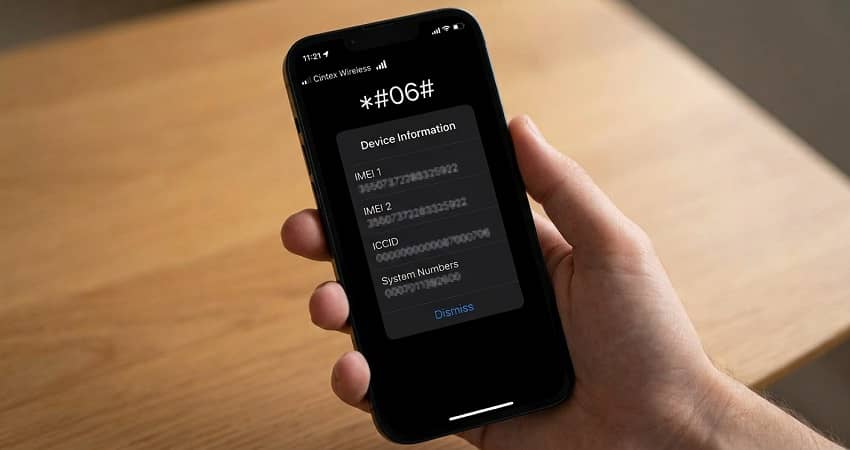
- Find your IMEI number. Dial *#06# on your phone. A 15-digit number appears. Write it down. (On an iPhone, you can also go to Settings > General > About.) If your phone has two IMEIs, write down both.
- Check that your phone is unlocked.
- iPhone: Go to Settings > General > About and look at Carrier Lock. If it says “No SIM restrictions,” your iPhone is unlocked.
- Android: Borrow a SIM card from a friend on a different carrier and put it in. If you can make a call, the phone is likely unlocked. You can also call your current carrier and ask.
- Make sure your phone supports 4G LTE and VoLTE. Look for “VoLTE,” “HD Voice,” or “Wi-Fi Calling” in your phone’s settings. Phones without VoLTE may not be able to make calls.
- Run the provider’s IMEI check. During the sign-up, choose the Bring Your Own Phone / Bring Your Own Device option and enter your IMEI. The system will tell you if the phone is compatible.
- Decide between SIM card and eSIM. If your phone supports eSIM (iPhone XR and newer, and many newer Androids), you can get an eSIM QR code after approval. If not, ask for a physical SIM card to be mailed to you.
Important: Type the IMEI carefully. A single wrong digit can make a good phone fail the check.
SIM card or eSIM: which one do you need?
A SIM card is a small chip you slide into a tray on the side of your phone. An eSIM is a digital SIM built into the phone. You add it by scanning a QR code — no mailing needed.
| Physical SIM card | eSIM | |
|---|---|---|
| Works with | Phones with a SIM tray | iPhone XR and newer, many newer Androids |
| How you get it | Mailed to you | QR code after approval |
| Speed | Wait for delivery | Can be active the same day |
| Good for | Older phones, people who prefer a physical card | Anyone with a newer unlocked phone |
Note for newer iPhones: US-model iPhones from the iPhone 14 onward don’t have a SIM tray at all, so they must use eSIM.
Once your SIM or eSIM is ready, follow our Cintex Wireless activation guide. If you end up on the AirTalk side, use the AirTalk activation guide instead.
How to bring your own phone to Cintex Wireless (step by step)
- Check your phone first. Follow the five checks above so you know it’s unlocked and compatible.
- Back up your phone. Save your contacts and photos to your Google or Apple account.
- Start your application. Go to Cintex Wireless’s official site. If it redirects you to AirTalk Wireless, that’s expected because of the merger. Enter your ZIP code.
- Pick “Bring Your Own Device.” Enter your IMEI when asked.
- Prove you qualify. Show proof of a program like SNAP, Medicaid, SSI, Federal Public Housing Assistance, or Veterans Pension — or proof that your income is at or below 135% of the Federal Poverty Guidelines. Approval usually goes through the National Verifier.
- Get your SIM or eSIM. Wait for the SIM in the mail, or scan the eSIM QR code once you’re approved. You can check your Cintex application status while you wait.
- Activate and test. Turn the phone off and on, then make a test call and text. If data doesn’t load, set up the Cintex Wireless APN settings.
New to the process? Our step-by-step guide to applying for Lifeline explains every part of the application.
Switching to Cintex from another Lifeline provider with your phone
If you already have Lifeline with a different company, you can move your benefit to Cintex/AirTalk and keep your phone. Here are the key rules:
- Unlock your phone first. Phones from your old Lifeline provider are often locked to that provider. Ask them to unlock it. Some providers only unlock after a set time.
- Keep your number. You can usually transfer (port) your number. Have your account number and transfer PIN ready. Our guide on keeping your number when switching Lifeline providers walks you through it.
- Mind the timing rules. Lifeline has usage-based timing limits on transfers, including a 60-day rule in some cases. Ask the new provider to confirm you can move now.
- One benefit only. Your Lifeline benefit moves to the new provider. You can’t have Lifeline with two companies at once.
For the full process, see our main guide on how to switch Lifeline providers.
What if your phone isn’t compatible with Cintex?
- Unlock the phone. If the only problem is a carrier lock, contact the carrier that sold you the phone. Once it’s paid off and the lock period ends, carriers generally must unlock it on request.
- Choose a free phone instead. Skip BYOP and take the free device offered with your Lifeline plan. Compare what’s available in our best Lifeline phones guide.
- Try a different Lifeline provider. Your phone may work on a different network. Browse our list of the best Lifeline providers.
- Learn the BYOP basics. Our general guide to bringing your own phone to Lifeline covers tips that work with any provider.
Stay safe: BYOP scam warning signs
Lifeline is a free government benefit. Watch out for these red flags:
- Someone asks you to pay a fee to “check” or “unlock” your phone for Lifeline.
- A website asks for your Social Security number but isn’t the real provider or the National Verifier.
- A seller promises a guaranteed free new iPhone with no qualifying check.
No real Lifeline provider charges an application fee. If you’re not sure a company is real, use our guide to verify a Lifeline provider and read our Lifeline scam alert.
Frequently Asked Questions
Yes. Cintex Wireless allows BYOP if your phone is unlocked and passes an IMEI compatibility check. Because Cintex is merging into AirTalk Wireless, new BYOP sign-ups may be completed on AirTalk’s website using its “Bring Your Own Device” option.
Yes, most unlocked iPhones that support 4G LTE can work. iPhone XR and newer models can use a free eSIM. iPhone 14 and newer US models have no SIM tray, so they must use eSIM. A carrier-locked iPhone will not activate.
Cintex Wireless’s own pages don’t clearly name its network. Several independent guides link Cintex to the T-Mobile network. The safest way to know if your phone will work is to run your IMEI through the provider’s compatibility check.
Dial *#06# on your phone and a 15-digit IMEI will appear on screen. On an iPhone, you can also find it under Settings > General > About. Some phones have two IMEIs; write down both.
According to AirTalk, current Cintex customers keep the same phone number, plan, and Lifeline benefits, and the move happens automatically. If you notice service problems after the move, contact AirTalk support.
No. Lifeline service is free for eligible households, and no legitimate provider charges an application fee. You may only pay if you choose an optional extra, like a paid phone upgrade or a top-up.